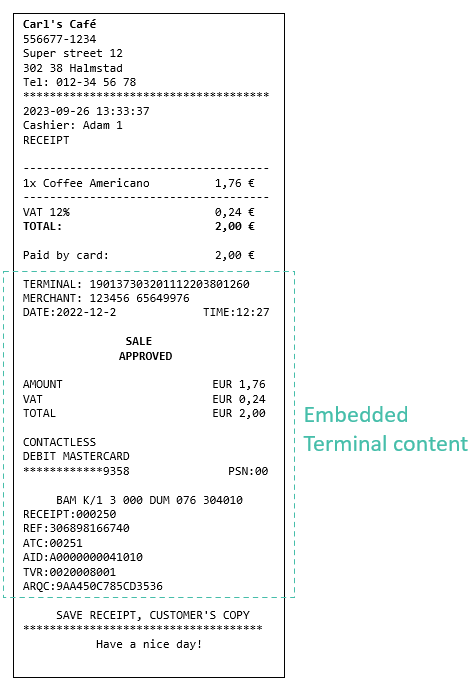
Receipt printing
Encoding link
Regardless of receipt type, the content of the receipt object is latin-1 encoded, all other data is UTF-8 encoded
ESCPOS link
ESC/POS is a format developed by Epson commonly used in receipt printers.
Commands start with an ESC character (HEX 0x1B) followed by a format character. When sent this way to a printer it will interpret the command sequence and apply formatting accordingly. Our API also offers the possibility to get a receipt string according to this format so that you can navigate the receipt data and embed the content into your own receipts.
Command sequences are interpreted from left to right, top to bottom without consideration for new lines.
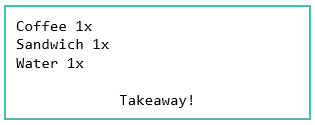
In the example below \x1b@ (left aligned) is only set once but is obeyed until \x1bA (center align) takes over from that point on.
\x1b@Coffee 1x\n
Sandwich 1x\n
Water 1x\n
\n
\x1bATakeaway!
This produces the following output:
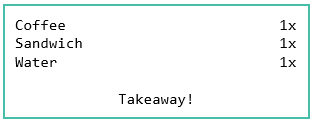
If you want to separate items from the quantity you will have to specify a right alignment and then reset back to left alignment on the next row like this:
\x1b@Coffee \x1bB1x\n
\x1b@Sandwich \x1bB1x\n
\x1b@Water \x1bB1x\n
\n
\x1bATakeaway!
This produces the following output:
List of commands link
| Group | HEX | ASCII | Description |
|---|---|---|---|
| Sections | 0x1B 0x21 | \x1b! |
Header |
| 0x1B 0x24 | \x1b$ |
Footer | |
| 0x1B 0x26 | \x1b& |
Content | |
| Alignment | 0x1B 0x40 | \x1b@ |
Left aligned (default) |
| 0x1B 0x41 | \x1bA |
Center aligned | |
| 0x1B 0x42 | \x1bB |
Right aligned | |
| Styling | 0x1B 0x50 | \x1bP |
Normal text (default) |
| 0x1B 0x51 | \x1bQ |
Italic text | |
| 0x1B 0x52 | \x1bR |
Bold text | |
| 0x1B 0x53 | \x1bS |
Double height | |
| 0x1B 0x54 | \x1bT |
1.5x height | |
| Barcode | 0x1B 0x60 | \x1b` |
EAN8 barcode START |
| 0x1B 0x61 | \x1ba |
EAN8 barcode STOP | |
| 0x1B 0x62 | \x1bb |
EAN13 barcode START | |
| 0x1B 0x63 | \x1bc |
EAN13 barcode STOP | |
| 0x1B 0x64 | \x1bd |
Reserved | |
| 0x1B 0x65 | \x1be |
Reserved | |
| Decorations | 0x1B 0x70 | \x1bp |
Horizontal separator (———) |
| 0x1B 0x71 | \x1bq |
Pad with following character, e.g. ‘_’ as long as the receipt width. |
Some command sequences has been removed as they are not supported by the REST API, for legacy features used in Host2T/Connect2T see table below.
| Group | HEX | ASCII | Description |
|---|---|---|---|
| Sections | 0x1B 0x20 | \x1bK |
Above header |
| 0x1B 0x21 | \x1b! |
Header | |
| 0x1B 0x22 | \x1b" |
Below header (above content) | |
| 0x1B 0x23 | \x1b# |
Above footer (below content) | |
| 0x1B 0x24 | \x1b$ |
Footer | |
| 0x1B 0x25 | \x1b% |
Below footer | |
| 0x1B 0x26 | \x1b& |
Content | |
| 0x1B 0x27 | \x1b' |
End of receipt | |
| Conditions | 0x1B 0x30 | \x1b0 |
All receipts (default) |
| 0x1B 0x31 | \x1b1 |
Approved receipts | |
| 0x1B 0x32 | \x1b2 |
Declined receipts | |
| 0x1B 0x33 | \x1b3 |
Merchant receipts | |
| 0x1B 0x34 | \x1b4 |
Cardholder receipts | |
| Alignment | 0x1B 0x40 | \x1b@ |
Left aligned (default) |
| 0x1B 0x41 | \x1bA |
Center aligned | |
| 0x1B 0x42 | \x1bB |
Right aligned | |
| Styling | 0x1B 0x50 | \x1bP |
Normal text (default) |
| 0x1B 0x51 | \x1bQ |
Italic text | |
| 0x1B 0x52 | \x1bR |
Bold text | |
| 0x1B 0x53 | \x1bS |
Double height | |
| 0x1B 0x54 | \x1bT |
1.5x height | |
| Barcode | 0x1B 0x60 | \x1b` |
EAN8 barcode START |
| 0x1B 0x61 | \x1ba |
EAN8 barcode STOP | |
| 0x1B 0x62 | \x1bb |
EAN13 barcode START | |
| 0x1B 0x63 | \x1bc |
EAN13 barcode STOP | |
| 0x1B 0x64 | \x1bd |
Reserved | |
| 0x1B 0x65 | \x1be |
Reserved | |
| Decorations | 0x1B 0x70 | \x1bp |
Horizontal separator (———) |
| 0x1B 0x71 | \x1bq |
Pad with following character, e.g. ‘_’ as long as the receipt width. |
Plain text link
This is a plain text receipt with tab characters (\t) and new lines (\n) for easy formatting, no tabs for left-aligned, one for center and two for right-aligned content.
If you just want a compliant receipt and have no intention of embedding it then you can just send this string to any printer without having to do anything else.
{
    "customer": {
      "shouldPrint": true,
      plain": "\tCarls Café\Café Street 5\n30237 Stockholm\nTfn:
        0840015400\nORG.NR: 556621-
        5215\n\nTERMINAL:\t\t190127313011101003798338\nBUTIK:\t\t12341124231
        58142719\nDATUM:2022-12-13\t\tTID:09:19\n\t\nKÖP\nGODKÄNT\n\nBELOPP\t\tSEK
        10,00\nTOTAL\t\tSEK 10,00\n\nBambora VISA\nPERSONLIG
        KOD\n************0010\t\tPSN:01\n\n\tBAM CA1 3 000 DUM 047
        992924\nKVITTO:002558\t\tREF:306881607013\n\nATC:00001 AED:091231\t\tARC:00\nAID:A0
        000000031010\nTVR:80C0048000\nTSI:6800\nTC:882D8427A268E214\n\n\tSPARA KVITTOT,
        KUNDENS KOPIA\n\n",
    },
}
Using the terminal printer hardware link
If your payment terminal has a built-in printer you can use it to print both the ECR’s and the terminals receipts together.
1. Perform a sale link
Example JSON sale
{
"amounts": {
    "base": 100,
    "currencySymbol": "SEK",
    },
}
2. Take ESCPOS string link
Save the ESCPOS string, it has been Base64 encoded to avoid the command characters to be destroyed due to conversion. Remember to look at “shouldPrint” to see if the customer copy is enough or if you should also print the merchant copy for this transaction.
{
    "customer": {
      "shouldPrint": true,
      "escpos": "GyEbUBtBRW1pbmVtcyBUcmFpbGVyClRyYWlsZXJwYXJrIDQKODE2IE1pc3NvdXJpClRmbjogMTIzNDU2Nzg5Ck9SRy5OUjogNTU2NjIxLTUyMTUKChsmG1AbQFRFUk1JTkFMOhtCMTgyODM3MzEzMDExMTAxMDAzMjg3NTc1ChtAQlVUSUs6G0IxMjM0NTY3ODkgNjU4MjgwMzQKG0BEQVRVTToyMDIzLTA5LTE4G0JUSUQ6MTI6MzkKG0AbQQobUkvWUApHT0RLxE5UChtQChtAQkVMT1BQG0JTRUsgMTAwLDAwChtAG1JUT1RBTBtCU0VLIDEwMCwwMAobQBtQCkNPTlRBQ1RMRVNTCk1BU1RFUkNBUkQKKioqKioqKioqKioqMzgzNhtCUFNOOjAwChtAChtBQkFNIEsvMSAzIDAwMCBEVU0gMDMyIDYwNDk3NAobQEtWSVRUTzowMDAwNzUbQlJFRjozMDczNTIzNDgyOTgKG0AKQVRDOjAwNzU4ICAbQgobQEFJRDpBMDAwMDAwMDA0MTAxMApUVlI6MDAwMDAwODAwMQpBUlFDOjM1NkI0Rjc2RUNBQjk3REIKChskG1AbQVNQQVJBIEtWSVRUT1QsIEtVTkRFTlMgS09QSUEKChsn",
    },
}
Decode the string to see the receipt with command characters.
public static string Base64Decode(string base64EncodedData)
{
  var base64EncodedBytes = System.Convert.FromBase64String(base64EncodedData);
  return System.Text.Encoding.Latin1.GetString(base64EncodedBytes);
}
Output:
\x1b!\x1bP\x1bACarls Café\n
Café Street 5\n
30237 Stockholm\n
Tfn: 0840015400\n
ORG.NR: 556621-5215\n\n
\x1b&\x1bP\x1b@TERMINAL:\x1bB190127313011101003798338\n
\x1b@BUTIK:\x1bB12341124231 58142719\n\x1b@DATUM:2022-12-13\x1bBTID:09:19\n\x1b@\x1bA\n\x1bRK\xd6P\nGODK\xc4NT\n\x1bP\n\x1b@BELOPP\x1bBSEK 10,00\n
\x1b@\x1bRTOTAL\x1bBSEK 10,00\n\x1b@\x1bP\nBambora VISA\nPERSONLIG KOD\n************0010\x1bBPSN:01\n\x1b@\n
\x1bABAM CA1 3 000 DUM 047 992924\n\x1b@KVITTO:002558\x1bBREF:306881607013\n
\x1b@\nATC:00001  AED:091231\x1bBARC:00\n\x1b@AID:A0000000031010\nTVR:80C0048000\nTSI:6800\nTC:882D8427A268E214\n\n
\x1b$\x1bP\x1bASPARA KVITTOT, KUNDENS KOPIA\n\n\x1b'\x00
3. Add ECR and ESCPOS Receipt together link
If your receipt already has a header you can look for command sequence \x1b& in the terminal receipt which signifies the beginning of content and remove everything before that. If your receipt already has a footer you can do the same with command \x1b$ and remove everything after that.
Remember that this removes the text “Merchant/Cardholder copy” which you should put back or add elsewhere on the receipt, we see that this is helpful for the operator especially on refunds where the cardholder copy is signed by the operator which is backwards to what most are used to.
Take the remaining string and embed it into your ECR receipt. Your ECR receipt will have to follow the same formatting as outlined here
4. Base64 Encode link
Encode the whole string back to Base64
public static string Base64Encode(string plainText)
{
  var plainTextBytes = System.Text.Encoding.Latin1.GetBytes(plainText);
  return System.Convert.ToBase64String(plainTextBytes);
}
5. Send Prints request link
Perform a Prints request with the base64 string.
{
    "receiptData": "The whole Base64 Encoded String"
}
Enjoy your printed receipt!