Terminal Setup guide
Before attempting this setup make sure that your network is configured correctly according to previous section network requirements.
Telium Tetra platform link
Press the red button on your terminal while it is idle and enter your terminal password to access the quick menu. In this menu you are able to select the different settings to change them.
Change language: link
If you’ve received a terminal configured in a language you can’t speak you can use the following button combinations on the terminals keypad to get to the language settings:
Menu -> 3 -> 1 -> 1 -> (Choose language)
Check the following:
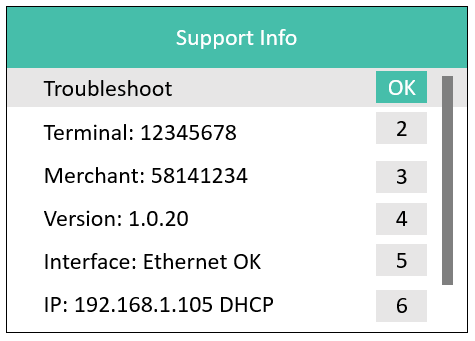
- That the device is connected to your WiFi network (only for WiFi capable models). The network must use WPA or WPA2 Personal encryption
- That the device has received an IP-address, if it hasn’t you can assign a static one but the best solution is to assign it a permanent DHCP lease in your router.
- That the software version is minimum
1.0.20 - Regardless if everything checks out or not run the “Troubleshooter” at the top of the menu and it will go through every setting and summarize any issues for you or download the latest settings if there are any. If the troubleshooter fails it should tell you which services are potentially unavailable.
Your device should now be ready for the next step, see “Authentication” section.
Axium platform link
Check the following:
- Access the menu by tapping the menu button
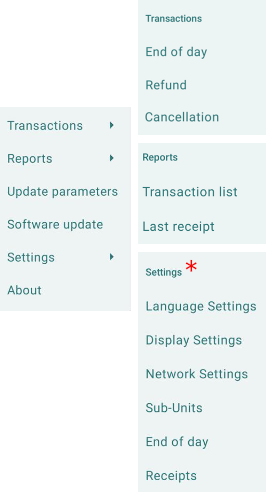
* Settings requires merchant password
-
If you haven’t attached the device to your network go into
Settings->Network Settings, here you can join your Wi-Fi network or assign a static IP-address if your network requires it, different terminal models will have different connection capabilities. -
Once your device is connected, select menu option “Update parameters” to make sure you have the latest config downloaded.
-
Select menu option
Aboutand scroll down to sectionECR, if your terminal is configured for integrated use you should see:
- ECR status: Activated
- Protocol: ECR Rest API
- Version: v2
- IP Address:
<your terminal ip>
You’re all set!